Main use:
Rapid Choice Question is designed to measure the implicit association, system 1 type of responses.
Participants are shown a stimulus and then a series of words are shown one by one and participants are asked to click on the word if they associate it with the stimulus. The words are only on screen for a very short time. This means we can be confident that any associations between word and stimulus are at the implicit ‘System 1’ level.
How to set up in the platform:
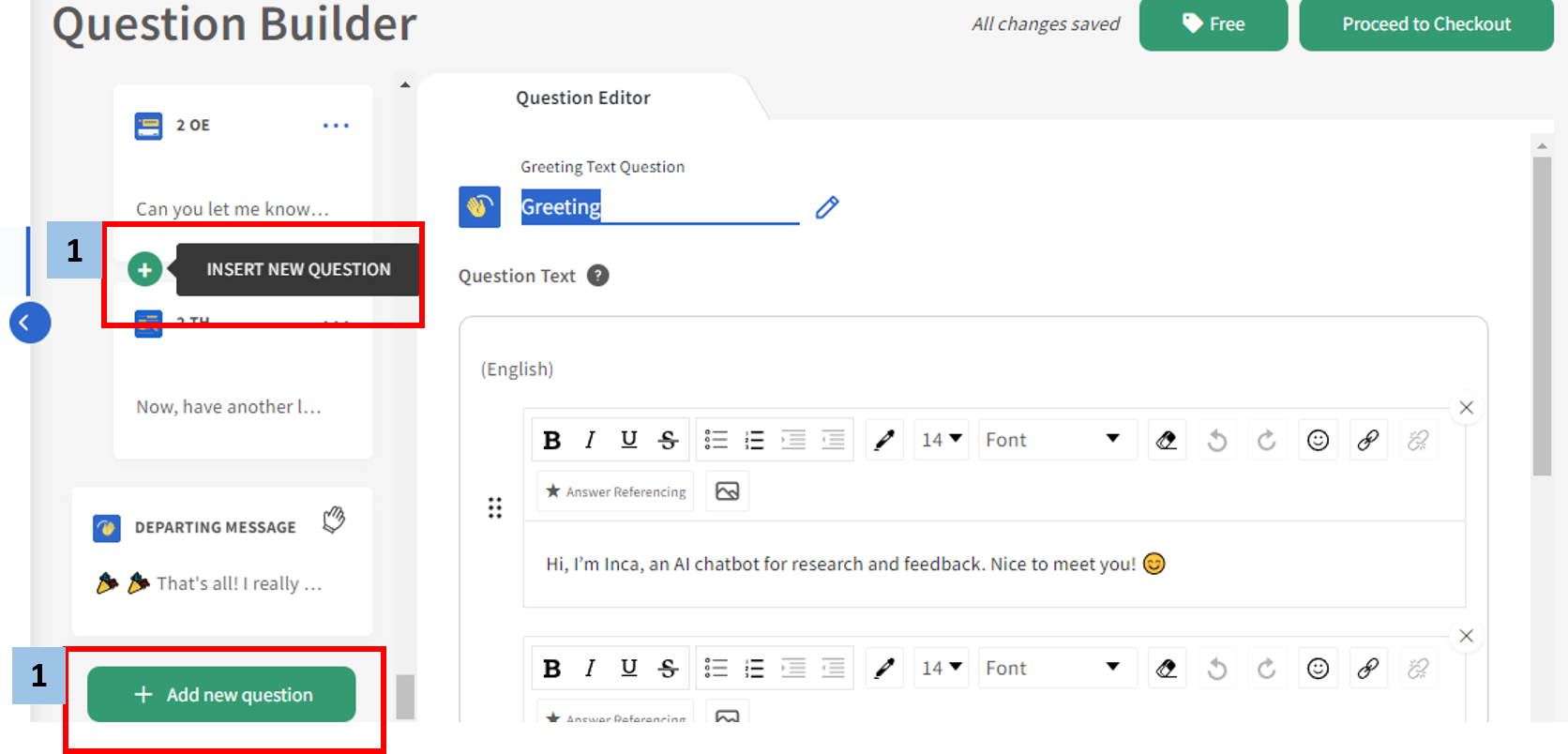
1. In the Questionnaire Builder page, add new question OR insert new question by hovering over an existing question and click the green (+) button (either above or below the existing question)
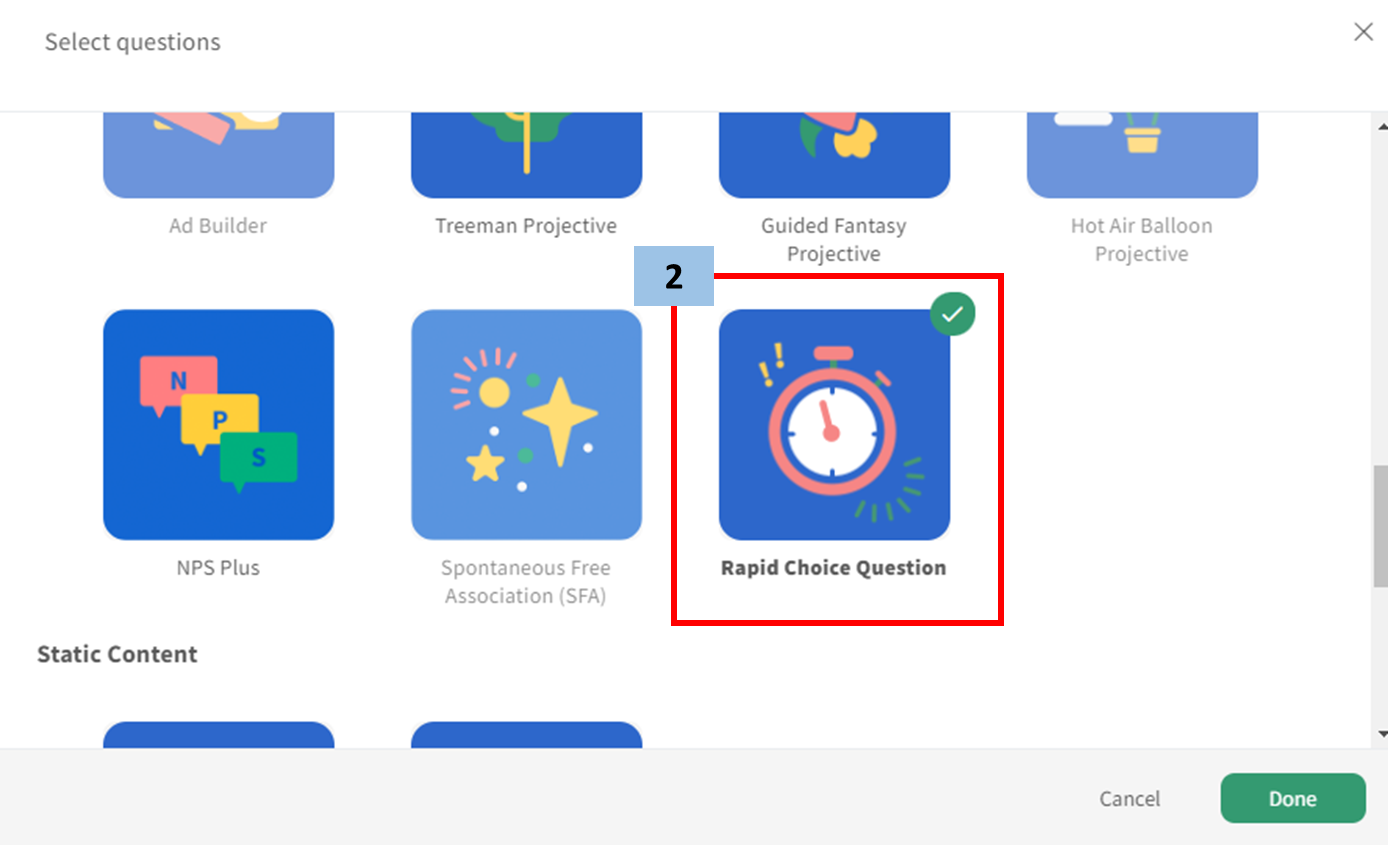
2. Select Rapid Choice Question from the popup menu that appears.
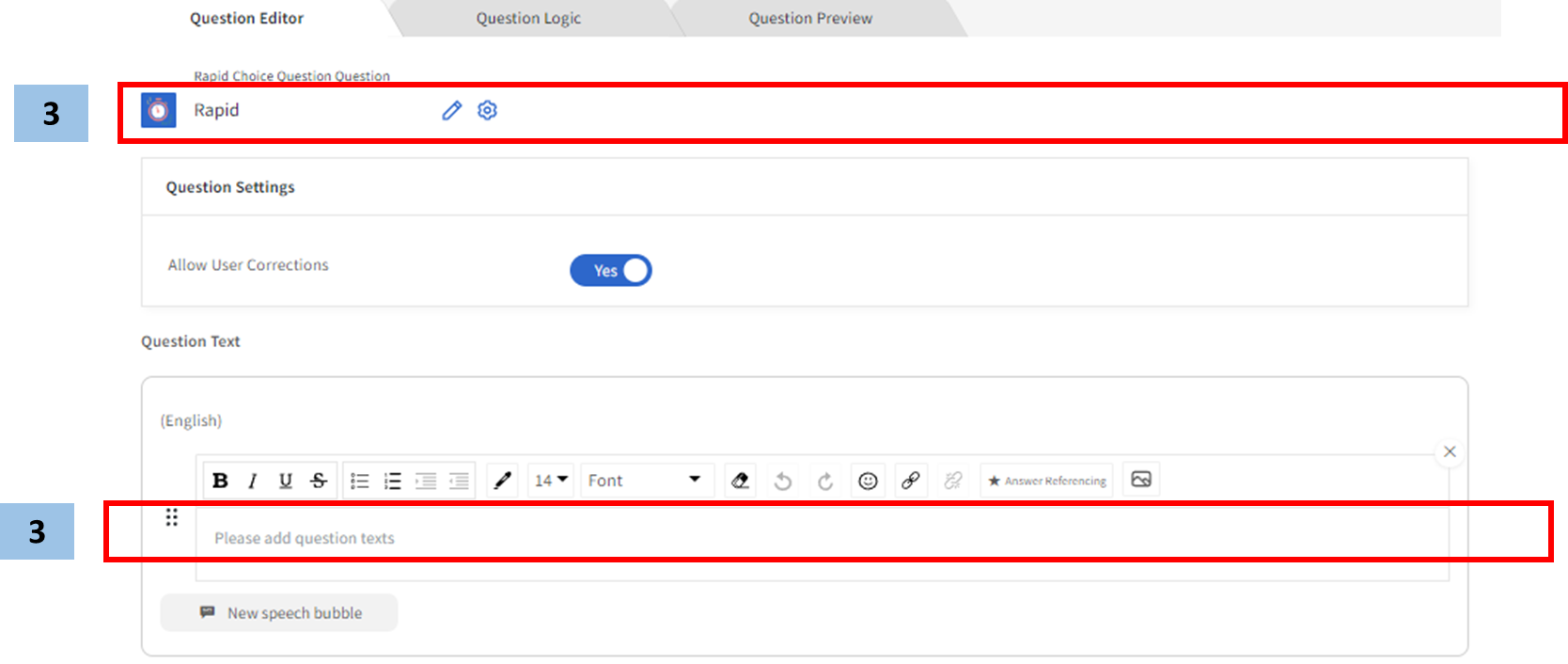
3. Write the question label and edit the question or introduction on the QUESTION TEXT Box.
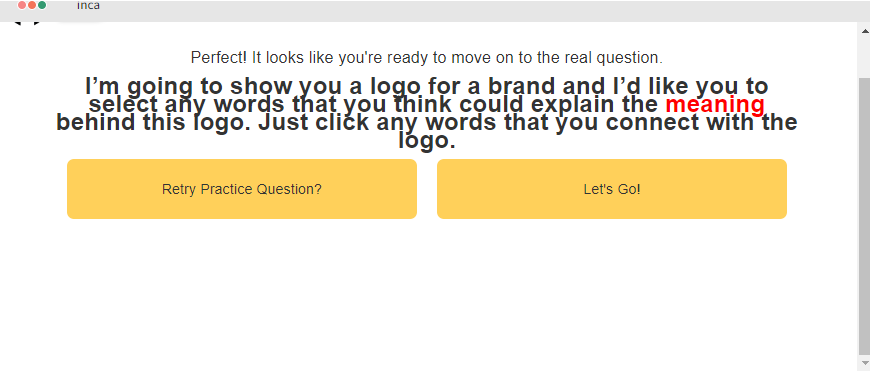
Note that in the PREVIEW tab there is already a structured set of questions for Rapid Choice
Note that in the PREVIEW tab there is already a structured set of questions for Rapid Choice
Preview Tab
4. Upload the stimulus material (brand logo)
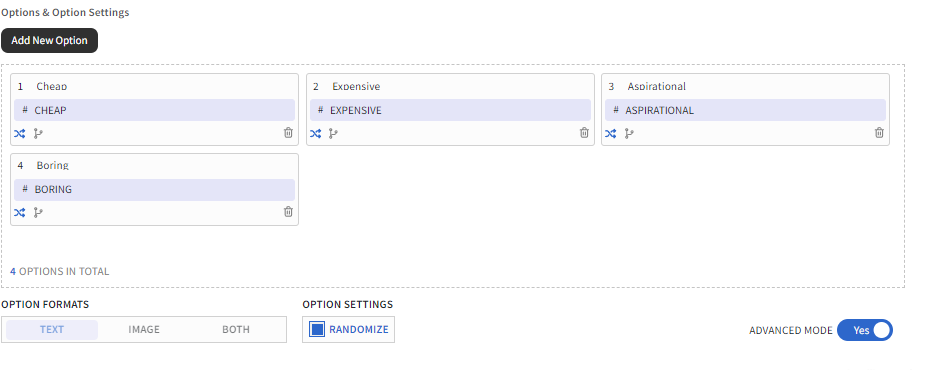
5. Add the options. (The user can decide if the words/options can be all associated or not to the logo / stimulus)
Other Question Settings
Override System Texts
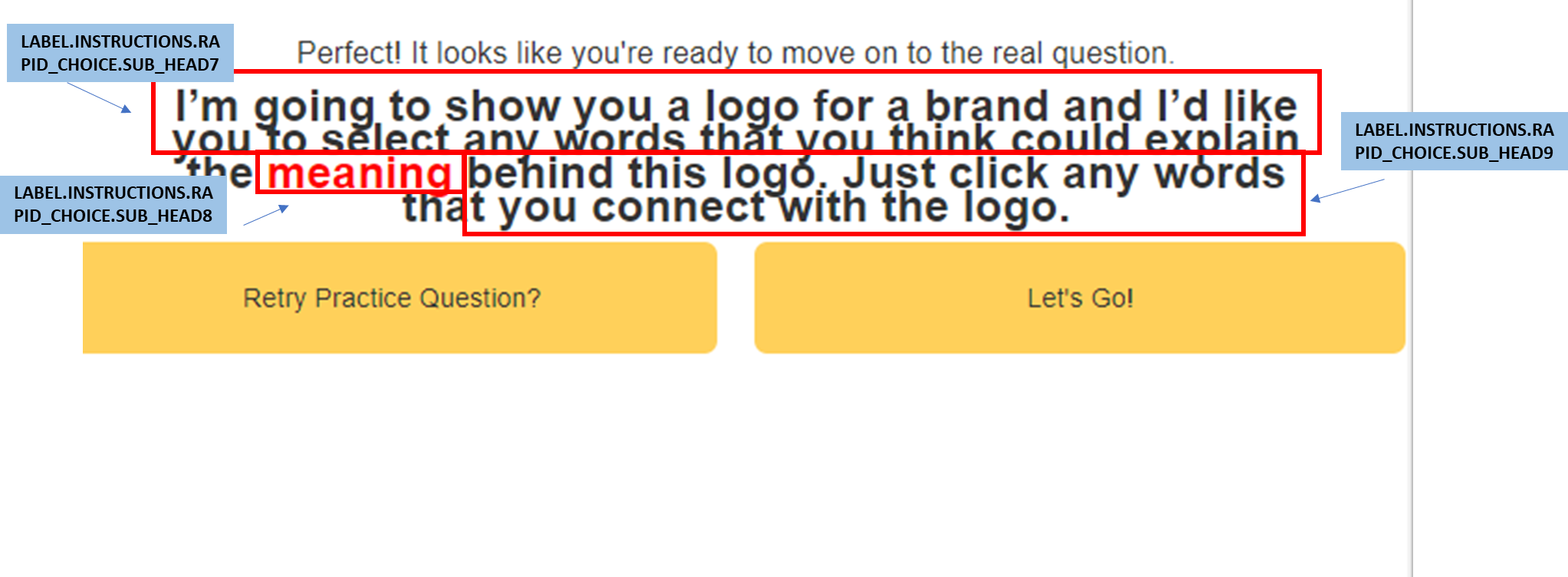
1. "LABEL.INSTRUCTIONS.RAPID_CHOICE.SUB_HEAD7"
2. "LABEL.INSTRUCTIONS.RAPID_CHOICE.SUB_HEAD8"
3. "LABEL.INSTRUCTIONS.RAPID_CHOICE.SUB_HEAD9"
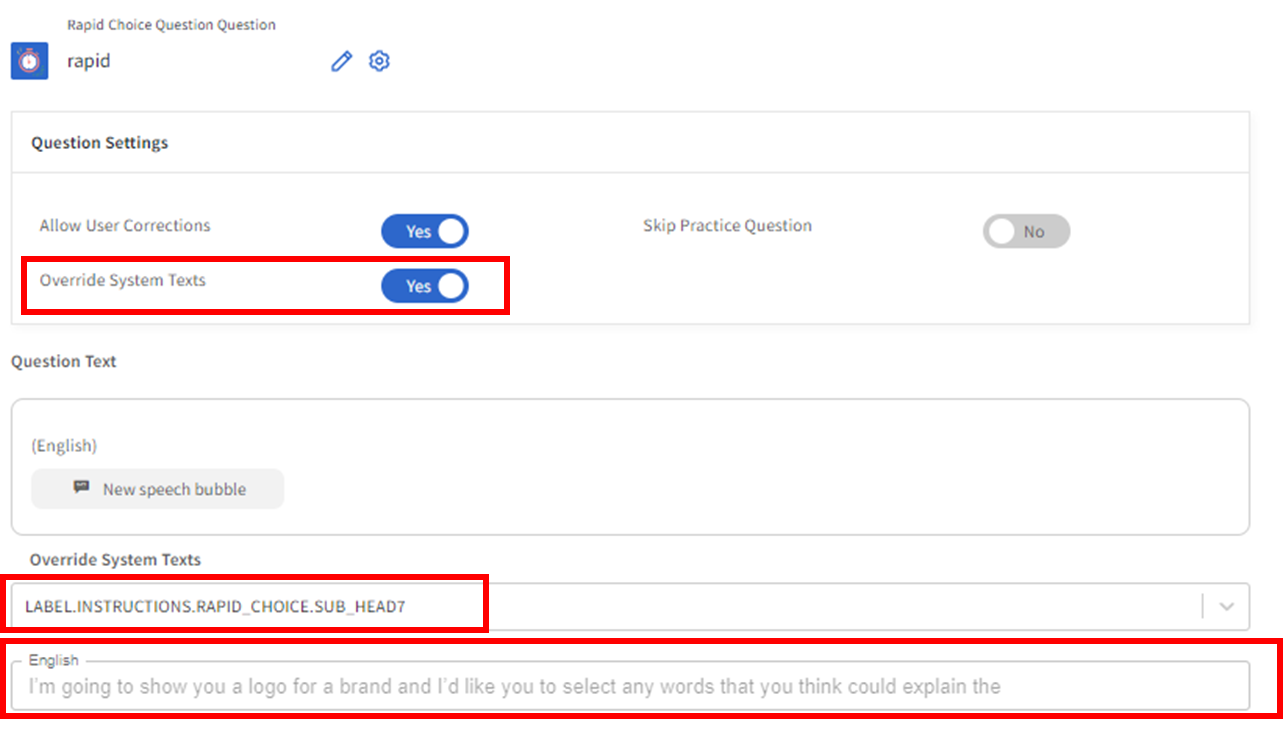
For each label instruction (i.e. LABEL.INSTRUCTIONS.RAPID_CHOICE.SUB_HEAD7) that you will type in, it will change the default instruction wording for each section.
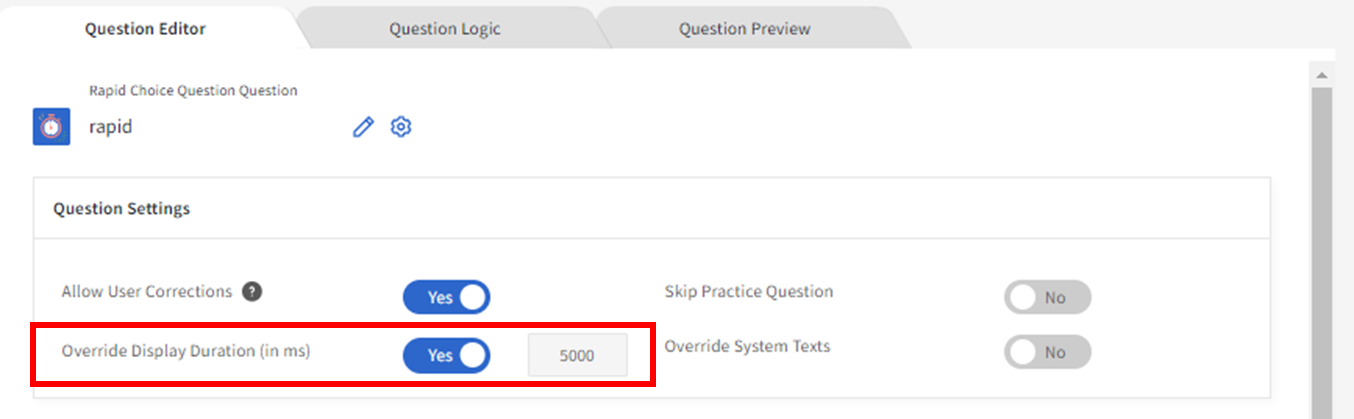
Override Display Duration
To modify the duration of how long the options will be displayed, toggle this button and input the duration in milliseconds. The default is 1 second (1000 ms).
Skip Practice Question
To enable/disable the practice round, toggle on Skip Practice Question
Allow User Corrections
To allow participants to update or change answer after submitting, toggle on Allow User Corrections.
Useful Option Settings
OPTION FORMATS
By default, Text is the option format
OPTION SETTING
If you want to randomize response to shuffle the choices (and to avoid response bias), click on RANDOMIZE. This will display the options in a random order instead of the order you added them in.
ADVANCED MODE
Enabling this feature by toggling ADVANCED MODE allow users to:
1) Modify option values/codes (by default it's equals to the option position, e.g. the first option has the option value/code "1"
2) Disable/enable randomization for certain options only by clicking the shuffle icon (for randomizing).
3) Select options to be visible or not visible to participants by clicking the branching icon (for display logic) then add option condition (For more details please go to OPTION CONDITION article).
Was this article helpful?
That’s Great!
Thank you for your feedback
Sorry! We couldn't be helpful
Thank you for your feedback
Feedback sent
We appreciate your effort and will try to fix the article